Featured photo by Pavel Danilyuk via Pexels
It’s a few weeks before the wedding and the budget spreadsheet has started to look at you funny. Someone in the group chat says, “Why pay for a photo app? Just make a Google Photos album.” And honestly, it’s a fair question.
A Google Photos shared album is free, it works on almost any phone, and you probably have the app already. For plenty of weddings, it’s all you need. For others, the small print turns into a very long week of chasing photos.
Here’s how to set one up properly, step by step, plus where it falls short at a wedding and what works better.
An Honest Note Before We Start
We make Posy, a wedding photo sharing app, so we’re not exactly neutral on this one. We’ve tried to write the guide we’d want if we were in your shoes: the setup steps first, then the trade-offs. Everything we say about how Google Photos works was checked against Google’s own help pages in October 2026. Google changes things often, so it’s worth a quick look at their help centre before the big day.
How to Set Up a Google Photos Shared Album for Your Wedding
The whole thing takes about ten minutes. Do it a few weeks before the wedding so you have time to test it.
Step 1: Create the album
Open Google Photos on your phone, tap the + button and choose Album. Give it a name your guests will recognise instantly, like “Sophie & Tom’s Wedding”, rather than “Wedding album 2”. Add a couple of photos yourselves, maybe from the engagement, so the album doesn’t look empty when the first guest opens it.
Step 2: Turn on sharing and create a link
In the album, tap Share, then Create link. Google is clear about what this means: anyone who has the link can view the album, and when you share a link, anyone with it can also add photos to the album.
Step 3: Check that Collaborate is switched on
In the album’s sharing options, make sure Collaborate is on. This is the setting that lets guests add their own photos and videos. If it’s off, your guests can look but not contribute, which rather defeats the point.
Step 4: Turn the link into a QR code
Google Photos can show a QR code for a shared album, and anyone who scans it can open the album. If you’d rather design your own sign, copy the link and paste it into our free wedding photo QR code maker, which turns it into printable table cards and a welcome sign in your own colours.
Step 5: Put it everywhere guests pause
Welcome sign, table cards, the bar, the back of the order of service. A small card on every table works better than one big sign by the door, because nobody scans a QR code on their way in. They do it twenty minutes into dinner, phone already in hand.
Step 6: Test it on a friend’s phone
This is the step everyone skips. Ask a friend, ideally one with an iPhone who doesn’t use Google Photos, to scan the code and add a photo. You’ll find out in two minutes exactly what your guests will see, including any sign-in screens.
Step 7: Download everything afterwards
On a computer, open photos.google.com, find the album, click the three-dot menu and choose Download all. You’ll get a zip file of everything. Do this within a week or two of the wedding, and keep a copy somewhere that isn’t Google.
Where a Google Photos Album Shines
What it does well:
- It’s free
- Most Android users already have it
Perfect for: A handful of close friends who all use Google Photos already.
Where It Falls Short at a Wedding
Google Photos is built for sharing holiday snaps with family, not for collecting photos from a hundred wedding guests in one night.
Guests need a Google Account to add photos
Anyone with the link can look at the album. To actually add photos, guests need to be signed in to a Google Account. For many guests that’s no problem at all. For an iPhone-using aunt who has never touched Google Photos, it’s a sign-in screen at 10pm, and that’s usually where she gives up.
Quality depends on each guest’s settings
Photos are uploaded the way each guest’s own Google Photos is set up. If someone has chosen to save storage space, their uploads may be compressed. You won’t know until you look closely, and by then it’s too late to ask for the originals.
It lives with your everyday photos
The wedding album sits in the same place as your screenshots, receipts and photos of the dog. Not a dealbreaker, just a little less special than a gallery made for the occasion.
Downloading is a computer job
The Download all option is on the website, so plan to grab your photos from a laptop rather than your phone.
When a Wedding Photo App Makes More Sense
If your guest list spans four generations and two operating systems, the best thing you can do is remove every step between “scan” and “upload”. That’s what dedicated wedding apps are for: guests scan a QR code, upload from the browser, and that’s it. No sign-in, no app, no account.
That’s how Posy works. Every plan includes unlimited photos and videos, full-resolution downloads, and twelve months of access, with one payment based on your guest count. Plans start at $29, which is a small price for knowing every guest can actually add their photos.
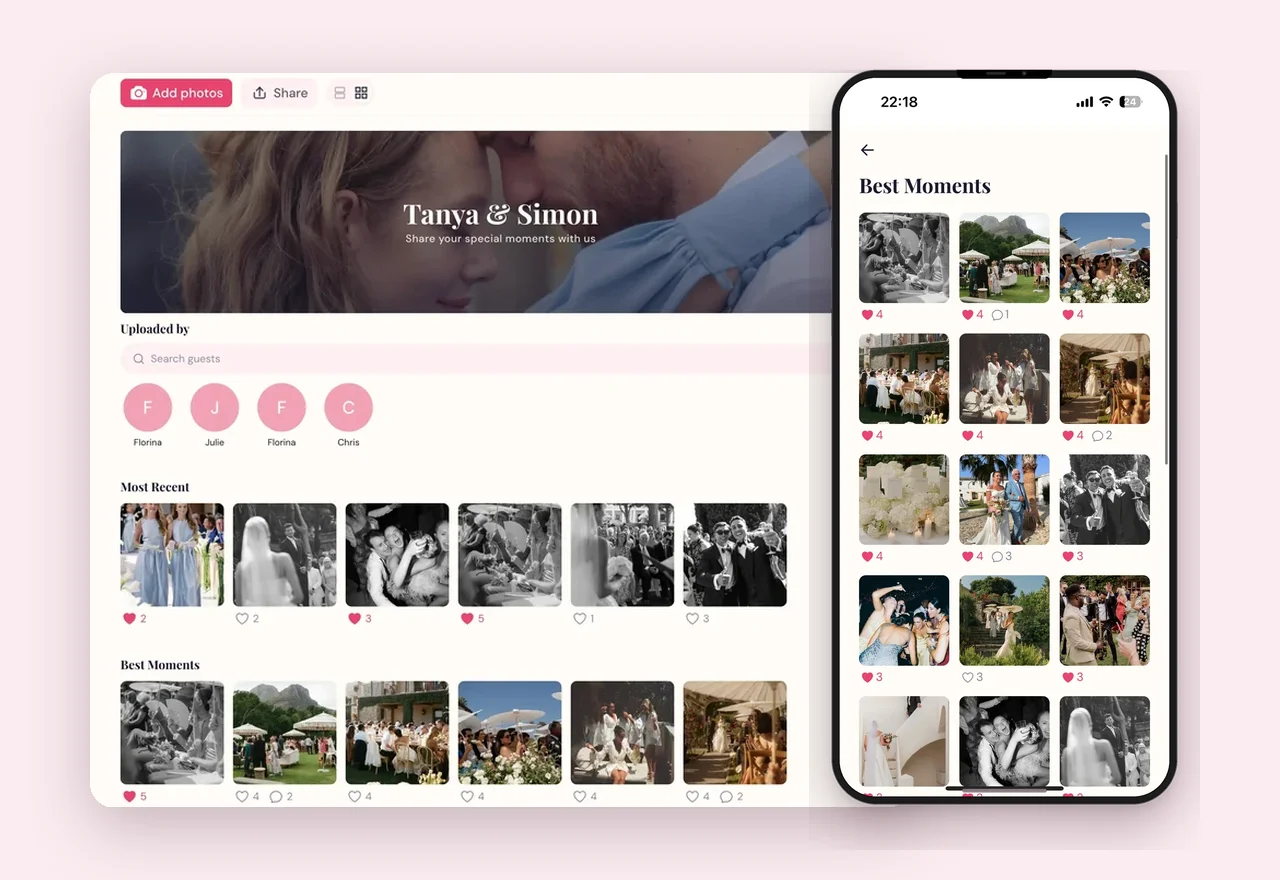
See what Posy costs for your guest list
Guests scan, upload and get back to the dance floor. Unlimited photos and videos, twelve months to collect them, and one payment from $29.
See pricing →If you’re still weighing up options, our guide to the best wedding photo sharing apps in 2026 compares nine of them, including Google Photos, on price, upload caps and how long you keep the files.
Frequently Asked Questions
Is a Google Photos shared album free?
Yes. Creating and sharing an album costs nothing. Photos are stored in Google Photos, so keep an eye on your Google storage if you’re adding lots of videos yourself.
Can guests add photos without a Google Account?
They can view the album with the link, but to add photos they need to be signed in to a Google Account. That’s the main reason couples with lots of iPhone users or older guests look elsewhere.
Can I stop people adding photos after the wedding?
Yes. Turn off Collaborate in the album’s sharing options. Guests can still view the album, but nobody new can add to it. Photos already added stay put unless you remove them.
How do I download all the photos from a shared album?
Open the album on photos.google.com on a computer, click the three-dot menu and choose Download all. Google packages everything into a zip file.
Can I make a QR code for a Google Photos album?
Yes. Google Photos can show a QR code for a shared album, or you can paste the album’s share link into our free QR code maker and print it on ready-made signs.
A Google Photos shared album can work for a small, Google-savvy crowd, as long as you set it up properly and test it before the day. For everyone else, a dedicated gallery like Posy removes the sign-in screens altogether. And our guide to how to collect photos from wedding guests covers signs, timing and the other tricks that get guests sharing.
And if photos are only one line on a very long list, our free Wedding Planning Checklist breaks everything else into simple, manageable steps.